
The Power of Questions in Interactive Ebooks
Modern education is no longer about asking the right questions. Instead, it has pretty much become commonplace to see educators handing learners the right answers on a silver platter.
Questions as a critical part of any learning experience have become a lost art – especially when education (and with that, learning new information) has shifted to solely passive listening.
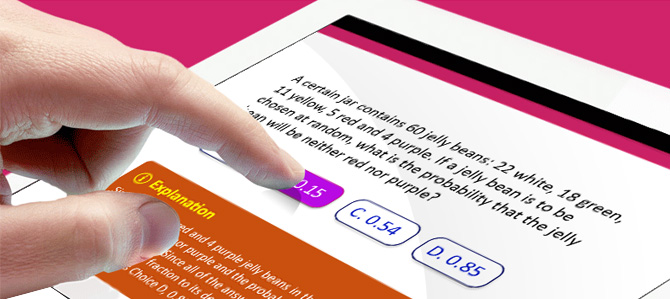
Interactive ebooks have helped us come a long way in dealing with the information we find in front of us, especially when it’s about keeping it in our heads. When it comes to understanding what we read, the art of creating questions and incorporating them into an ebook has the benefit of making that information sink in with readers.
What better way to keep students on their toes and help the information stick than to include quizzes and self-assessments in your ebook?
Setting your quizzing objectives
The first step is to ask yourself how you will set the questions out, as this will affect how the readers will interact with the information. Is this:
- A quiz that will be graded by a source outside of the widget (in which case the answers are sent as a message or email externally)?
- For self-assessment (in which case, you can embed the answers as part of the widget itself)?
Another point to take into account is how the quizzes themselves will form part of the ebook. It may be that you decide to embed an extra widget into your ebook to create the quizzes, which will create an external popup window. In this case, apps such as BookWidgets and Bookry can be useful, as they will also guide you through the process of building up the quizzes.
You can see plenty of sample quizzes created by BookWidgets on this page (opens in new window).
However, you may decide to use an ebook creating software that has the quiz embedded within the page and amongst the content. The benefit of having the quiz in this format, is that users will feel that the questions aren’t separate from the ebook. Kotobee Author presents an excellent solution here, with the free version allowing you to add questions right into your ebook.
Different question formats
The next step you need to take into account is what form your questions will be written in. There are several forms your questions can take in your quiz, including:
- True/False Answers – Users simply fill in or click on a “True” or “False” answer.
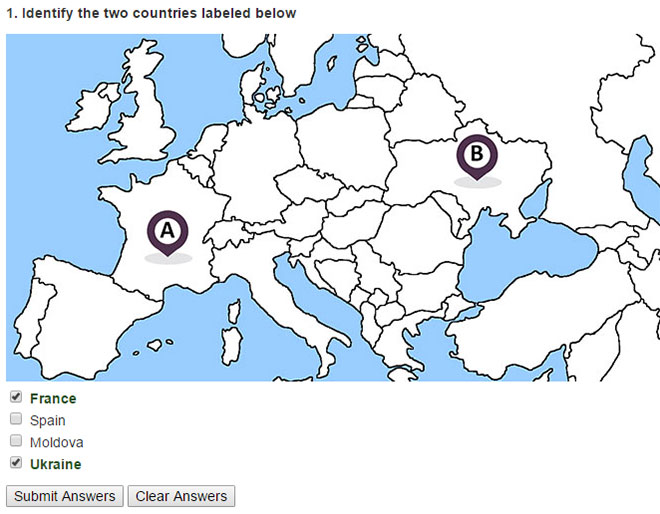
- Multiple Choice Question (MCQ) Single Answer – Set out as a multiple choice question, users can only click on one of the answers given.
- MCQ Multiple Answer – Set out as a multiple choice question, users can click on one or more of the answers given (and all can be correct responses).
- Short Answer – Users provide more than just a single word response, instead providing a very brief paragraph of explanation.

These forms can affect the final decision you take in how your students interact with their questions, and in what form they can get their work “marked”. This is a step up from the teacher’s red pen, as it gives the questions greater immediacy and interactivity.
Users can also see exactly where they went wrong and what areas they most need to work on, especially if you have given them virtual feedback and pointers. This can occur either through clickable links that take users back to relevant section in the book that either corrects their response, or expands on answers they have given.
How to use questions in ebooks?
The following points give an outline of several areas where you can do a lot to make your questions more testing (and usable) for readers. Remember that, with ebooks now a popular choice of reading material, users expect more in terms of usability.
The questions you settle on will largely depend on what information you are dealing with, as where explanations are needed, a simple one word answer won’t work.
Make the questions interactive
One of the powers of ebooks is their ability to be interactive. This means you can have the correct answer pop up as soon as the user has answered the question (and they don’t have to wait).

Alternatively, you can add a clickable link that will take the user through to the relevant part of the ebook. A further clickable link will then take them back to the questions section where they can continue at their own pace.
Using pictures
Another way to make questions more fun; you can add pictures to your answers that help the reader answer the question, or just make it more fun. This idea is a particularly useful addition for younger learners who may find it more enjoyable dealing with images in addition to text.
If you’re targeting an even younger audience, like toddlers, you can add the question as an audio and the answers as pictures. For example, you can record an audio asking “Which box is Green?” Simultaneously, the reader is presented with multiple pictures of different colors and they can simply tap the relevant picture that answers the question.
In turn, you can embed smiley faces to let them know if they have the correct answer. Alternatively, you can also add in animated characters that either let the user know they’ve given the right answer or provide the answer to the user. These can come in the form of a pop-up speech bubble once the user has submitted their answer.
Apps such as BookWidgets are excellent for interactivity, especially when you want to play around with the quiz’s format.
When yes/no answers aren’t enough
Sometimes, what is required isn’t as simple as giving just a yes/no answer. Instead, the user needs to fill out a brief paragraph explaining the reasoning or giving further information. In this case, you can create clickable links (as in the point above) that takes the user straight through to the relevant part of the text.
Alternatively, you can create a secondary column with the answer next to the user’s given answer. Although a little less exciting, this has the benefit of empowering users so they can compare the two next to each other.
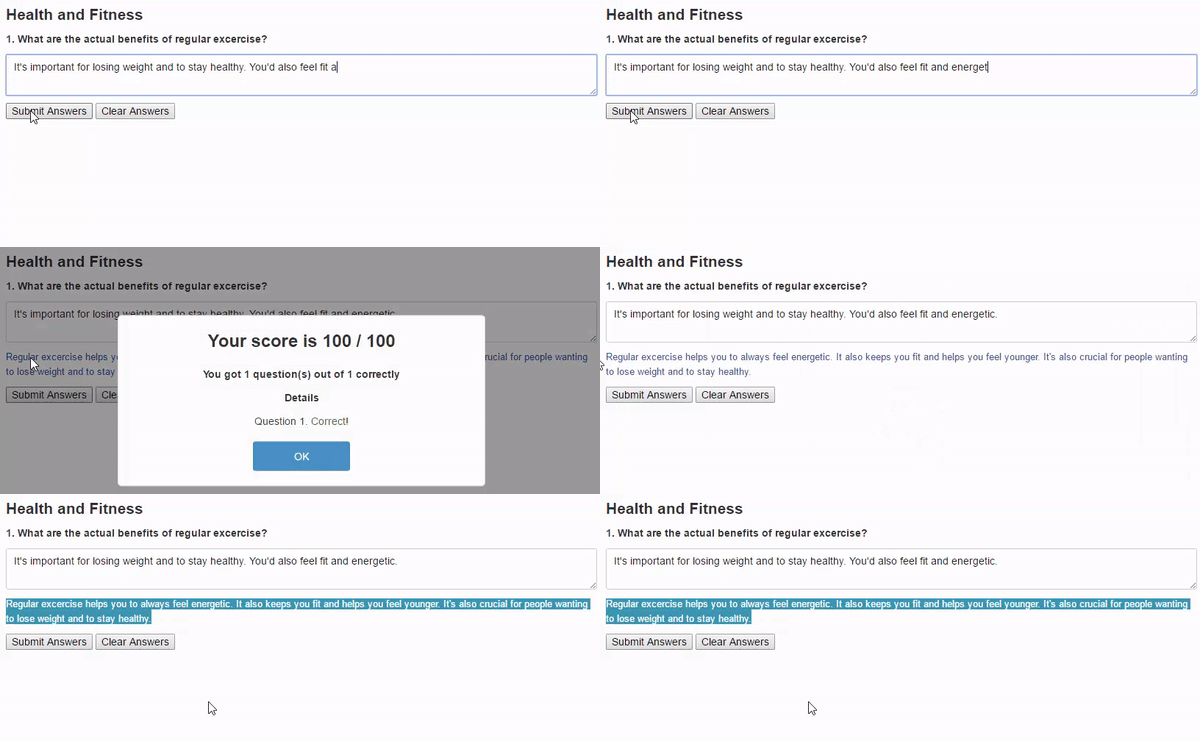
You can also add a clickable link that takes the user through to the relevant part of the book and they can gather more information. This has the benefit of allowing users immediacy in seeing how they answered, and if there is further information they need to add to their knowledge in the future.
Taking one question at a time
Instead of having all the questions on the same page (which can panic or overwhelm some people), you can have a feature almost like a slideshow, with one question per “slide”.
This way, users can focus on each question individually without being overcrowded with text. As soon as they receive their result for each question, they can then click on a “Go to the next question” link to proceed.
Multiple choices
This is one of the most common types of quizzes out there – and with ebooks you have the added opportunity of making them interactive. Whether it’s turning them red if the answers are incorrect or green if they are correct, you can give users the power to see how they are doing as they go along.
Preparing notes as you go along
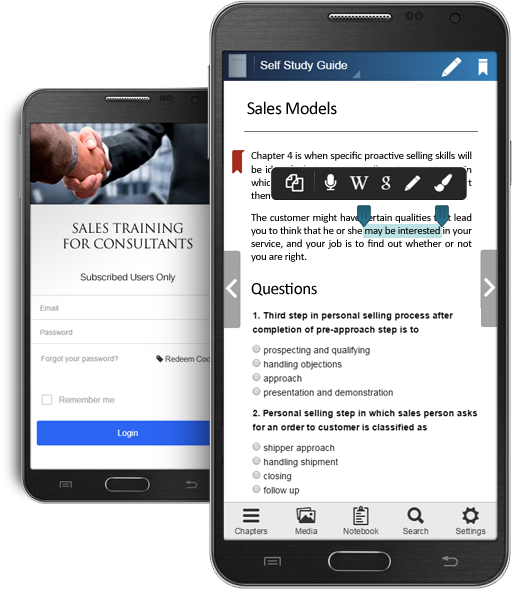
Instead of being just a self-assessment tool, questions can form part of interactive textbooks, helping users build up the information as they go along.
For instance, if you have a chapter on the anatomy of the lungs, you can ask questions such as “Name the different parts of the lungs”. Users can simply add in bullet points that can later be put together as revision sheets.
This makes it much easier for users to revise the topic later on, as they have a list of bullet points that are more easily readable than paragraphs of text. As it is, the information is easier to access in interactive ebooks – it’s just that the information is even more condensed and users can simply click through to the info they need when they need it.
Receiving and delivering answers
Because you get to define what type of questions appear (as mentioned above), you can also define how the users receive the answers. This can happen in either of the three following ways:
- Self-Answer – This is like traditional written tests in schools, where users find their scores displayed after the answers have been submitted. This doesn’t give any further information other than the score the user gained.
- Self-Answer With Report – The user still gets the final score once they submitted their answers, but they also find further details showing the correct and incorrect answers.
- Do Nothing – This is useful when in a classroom and the teacher is still interacting with students – with no final scores given, users instead refer back to the teacher for further guidance.

As an alternative, you can ensure that the educator (or even you, as the author) receive the answers students submit via email. This entails using an assessment or quiz creator that also has a feature allowing you to receive an email with the user’s answers and/or their score. Kotobee Author has this option, where answers can be sent to an email designated by the ebook’s author according to the author’s wishes.

This gives educators more room to actually see for themselves how their students are getting on. Apps such as iSpring Quizmaker and Bookry give the option for teachers to receive quiz answers this way. Teachers can also receive feedback as soon as the quiz has been submitted.
Other apps, such as SoftChalk, give teachers the opportunity to access student quiz results through the Learning Management System (LMS) itself. In this case, the LMS is a centralized platform, or cloud, that allows users to access the information they need. This information can then be compared to see how students are getting along against previous quizzes submitted.
Now that you have gained a better idea of just how ebook quizzes can be created, it’s time to consider how you want to handle testing readers. As ebooks are so easy to update, and there are virtually negligible costs to reproducing them, you can afford to play around and get user feedback for future updates.
You might also like:
How to Add a Feedback Form to Your Ebook
How to create an interactive ebook: A step-by-step guide
Why You Should Create a Mobile Learning Platform
How to edit EPUB books manually
Related Posts









Alper Karazeybek
June 10, 2020Can I use the Questions function for an epub file which is going to be published on “Google Play Books”? Doestthis element include Javascript?
Kotobee
June 10, 2020See my reply above 🙂
Alper Karazeybek
June 10, 2020Thanks. 🙂 So the only option is Kotobee Cloud services/Android/IOS Apps
Kotobee
June 10, 2020That’s not the only option of course. Many online ebook stores support EPUB 3, such as Apple Books Store. As long as the reader supports EPUB 3 spec fully, then it will work. And any ebook app format (web app, desktop app, mobile app, etc) will definitely work since it has our reader bundled inside.